01 How it works
Lean SMTP uses the OAuth 2.0 authorization-code flow against an OAuth client you create in your own Google Cloud project. You click Connect in the plugin, approve access in the Google consent screen once, and Google hands back a refresh token that the plugin stores encrypted. On each send it trades that refresh token for a one-hour access token and posts the message to the Gmail API — the same send path as the service-account transport.
The connected mailbox is captured automatically from the sign-in (the openid email scopes), so you never type the sending address.
(1) the Gmail API enabled, (2) the OAuth consent screen set to Internal, (3) a Web-application OAuth client whose authorized redirect URI is the plugin's callback, and (4) a Client ID + secret pasted into Lean SMTP, then Connect.
02 Before you start
- A Google Workspace account that can send mail — the mailbox you'll connect, e.g. noreply@example.com.
- Access to a Google Cloud project owned by that Workspace organization. The "Internal" consent-screen option only appears for projects under a Workspace org. (You do not need to be a Super Admin — that's the whole point versus the service-account method.)
- Lean SMTP 0.6.0 or newer installed and activated.
03 Create a project & enable the Gmail API
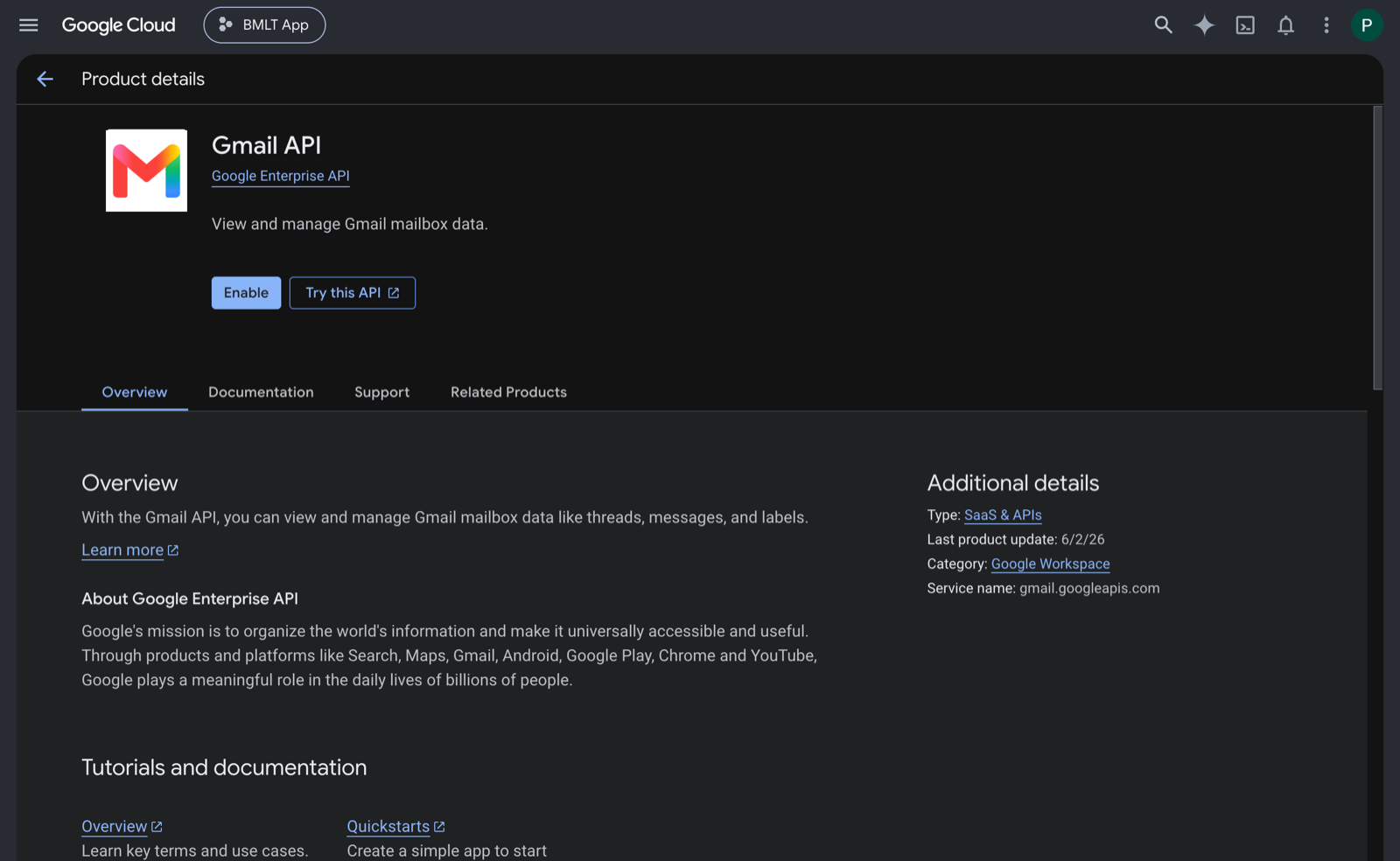
In the Google Cloud Console, create (or pick) a project that belongs to your Workspace organization. Then open the Gmail API page and click Enable.
04 Set the consent screen to Internal
Open Google Auth Platform → Audience. The User type must be Internal. If you've never configured the consent screen, you'll be prompted to create it first (give it an app name and a support email) — choose Internal as the audience.
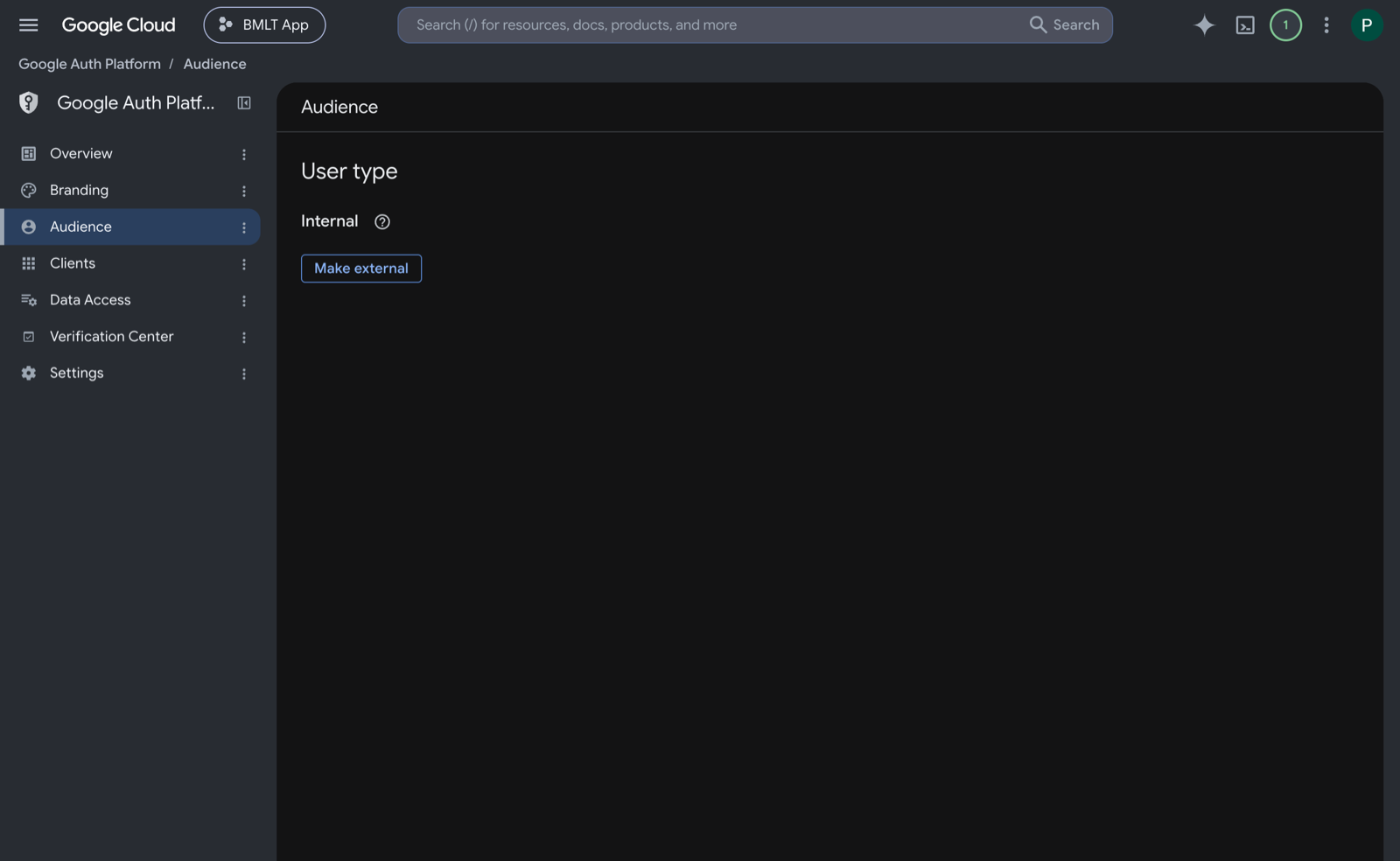
An External consent screen will still let you connect, but Google shows an "unverified app" / "Access blocked" warning on every consent and, in Testing mode, expires the refresh token after 7 days — so mail silently stops a week later. Keep it Internal.
05 Get the redirect URI from Lean SMTP
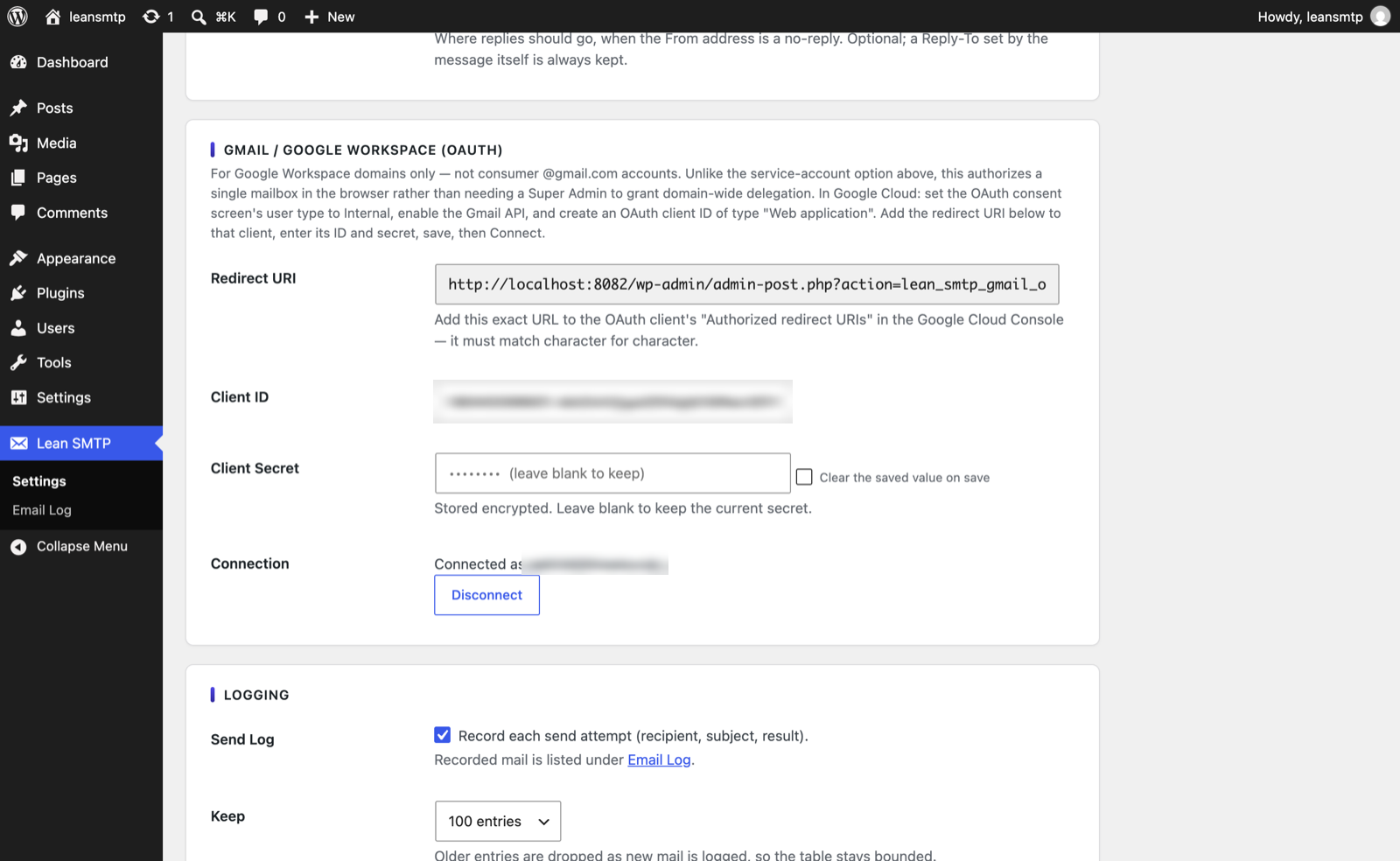
You'll need the plugin's callback URL when creating the OAuth client. In WordPress, go to Settings → Lean SMTP, set the mailer to Gmail / Google Workspace (OAuth), and copy the read-only Redirect URI shown there. It looks like:
https://your-site.com/wp-admin/admin-post.php?action=lean_smtp_gmail_oauth_callback
Google matches the redirect URI character for character — scheme, host, path and query all count. A trailing slash or an http/https mismatch is the #1 cause of a redirect_uri_mismatch error. Paste the plugin's value; don't retype it.
06 Create the OAuth client (Web application)
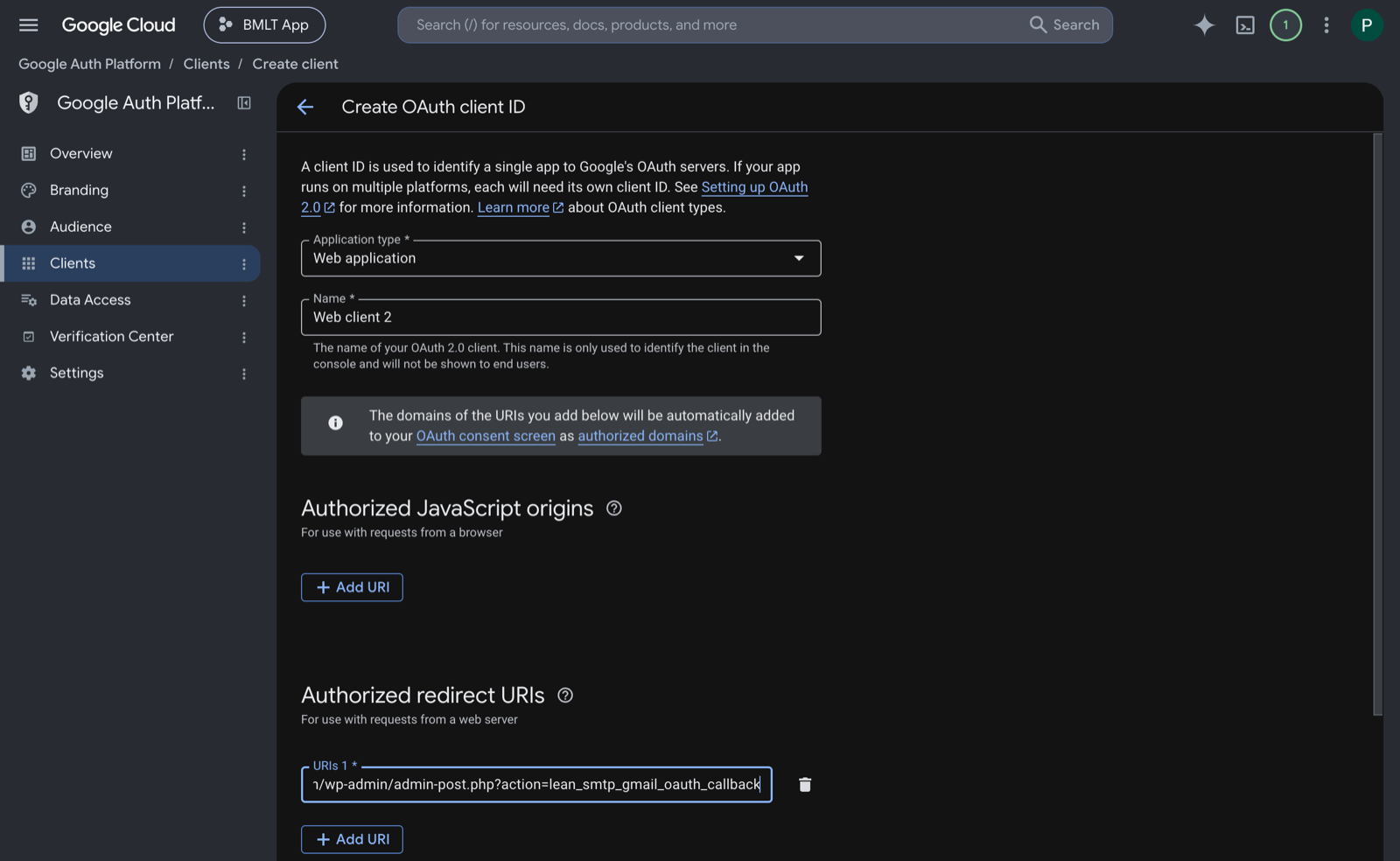
- Open Google Auth Platform → Clients and click Create client.
- Set Application type to Web application.
- Give it a name, e.g. lean-smtp.
- Under Authorized redirect URIs, click Add URI and paste the Redirect URI from Step 5.
- Click Create.
07 Copy the Client ID and secret
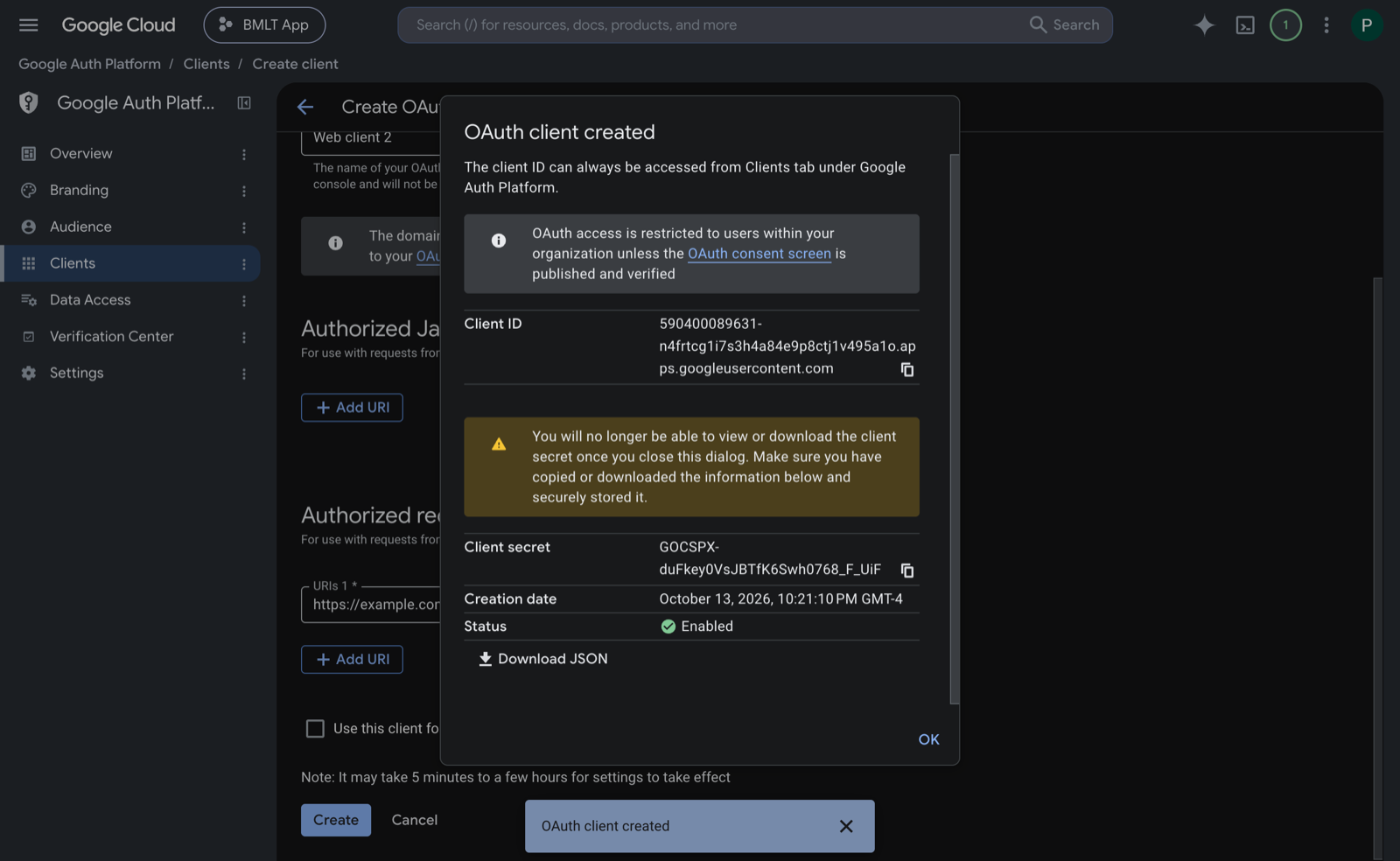
Google shows the new client's Client ID and Client secret once. Copy both now (the secret isn't shown again — though you can always add a new secret later).
08 Connect in Lean SMTP
- Back in Settings → Lean SMTP with the mailer set to Gmail / Google Workspace (OAuth), paste the Client ID and Client Secret.
- Click Save Changes. A Connect a Google account button appears in the Connection row.
- Click Connect a Google account. You're sent to Google — sign in as the mailbox you want to send from and approve the request.
- You're returned to the settings page showing Connected as you@example.com. That address is captured from the sign-in automatically.
- In the From section, set From Email to the connected address (or an alias it may send as), and enable Force From if other plugins set their own.
09 Configure in wp-config.php (optional)
The client ID and secret can be pinned as constants, which beat the stored options and lock the fields in the admin. The refresh token and connected mailbox come from the Connect flow, so they're not set this way:
define( 'LEAN_SMTP_MAILER', 'gmail_oauth' );
define( 'LEAN_SMTP_FROM_EMAIL', 'noreply@example.com' );
define( 'LEAN_SMTP_GMAIL_OAUTH_CLIENT_ID', '1234567890-abc.apps.googleusercontent.com' );
define( 'LEAN_SMTP_GMAIL_OAUTH_CLIENT_SECRET', getenv( 'LEAN_SMTP_GMAIL_OAUTH_SECRET' ) );
Even with the ID and secret in constants, you must do the browser Connect once to grant the mailbox and store the refresh token. Pin the ID/secret, then Connect.
10 Send a test email
- Use the Send a Test Email button on the settings page, or
- Run WP-CLI:
$ wp lean-smtp test you@example.com

Success: Test email sent to you@example.com.
wp lean-smtp status shows the mailer, the client ID and whether an account is connected — never the secret or refresh token.
11 Troubleshooting
| Symptom | Likely cause & fix |
|---|---|
| redirect_uri_mismatch | The redirect URI on the OAuth client doesn't match the plugin's exactly. Copy the read-only Redirect URI from Lean SMTP and paste it into the client's Authorized redirect URIs — mind the scheme and trailing slash. |
| Access blocked / unverified | The consent screen is External, not Internal. Switch it to Internal (Step 4). External needs Google verification for the gmail.send restricted scope. |
| No refresh token returned | Google reused a prior grant. Remove the app under your Google Account → third-party access, then click Connect again. (The plugin forces prompt=consent to avoid this.) |
| "Reconnect the account" | The stored authorization was revoked or expired (invalid_grant). The plugin drops it and shows Connect again — just reconnect. |
| Didn't return the address | The consent didn't include the email scope. The plugin requests openid email automatically; if you edited scopes, restore them and reconnect. |
| From rejected | The From Email isn't the connected mailbox or a permitted alias. Align them, or enable Force From. |
12 Which method should I use?
| OAuth (this guide) | Service account | |
|---|---|---|
| Who approves | The mailbox owner, in the browser | A Workspace Super Admin |
| Scope of access | One connected mailbox | Any mailbox in the domain |
| Setup | OAuth client + one-time Connect | Service-account key + domain-wide delegation |
| Best when | You run a single sending account and can't get a domain-wide grant | You're the admin and want it set once for the whole domain |
Both use the same Gmail API and the same send path. See the service-account guide for that method.
13 Security notes
- Least privilege. The grant is scoped to
gmail.send(plusopenid emailto read the address) — send only, no inbox access. - Encrypted at rest. The client secret and refresh token are AES-256 encrypted against your site salts and never re-displayed.
- Revoking is one click. Disconnect in Lean SMTP revokes the grant at Google and forgets it locally. You can also remove it from the account's third-party access.
- Rotate the secret in the Google Cloud client if it may have leaked, update it in the plugin, and reconnect.
Open an issue on GitHub or ask on the WordPress.org support forum. Google's reference for this flow is OAuth 2.0 for web server apps.