01 How it works
Unlike the usual "sign in with Google" flow, Lean SMTP never asks a user to click through a consent screen. Instead it authenticates as a service account — a non-human Google identity you create once — and uses domain-wide delegation to act on behalf of one of your Workspace mailboxes.
On each send, the plugin:
- builds a short-lived JWT and signs it (RS256) with the service account's private key;
- exchanges that JWT at oauth2.googleapis.com for a one-hour access token, scoped to
gmail.sendand impersonating your Send As mailbox; - posts the message as raw MIME to the Gmail API at gmail.googleapis.com.
The access token is cached (just under its hour) and re-minted as needed. Nothing but the signed JWT and the message ever leaves your site, and the private key is stored AES-256 encrypted in your database.
(1) the Gmail API enabled in a Google Cloud project, (2) a service-account JSON key you paste into the plugin, and (3) that service account's client ID authorised for the gmail.send scope in your Workspace Admin Console. Miss the third and Google returns unauthorized_client.
02 Before you start
You will need:
- A Google Workspace domain (e.g. example.com) with a real mailbox you want mail to come from, such as noreply@example.com.
- Super Admin access to that Workspace's Admin Console — or someone who has it to do Step 7 for you. Domain-wide delegation can only be authorised by a Super Admin.
- Access to the Google Cloud Console, with permission to create a project and a service account. This can be any Google account; it does not have to be in the same Workspace.
- Lean SMTP installed and activated on your WordPress site.
03 Create a Google Cloud project
A project is just a container for the Gmail API and the service account. If you already have one you want to use, skip ahead.
- Go to the Google Cloud Console and sign in.
- Open the project picker at the top and choose New Project.
- Name it something recognisable — e.g. wordpress-mail — and click Create.
- Make sure the new project is selected in the picker before continuing.
04 Enable the Gmail API
- With your project selected, open the Gmail API page in the API Library.
- Click Enable.
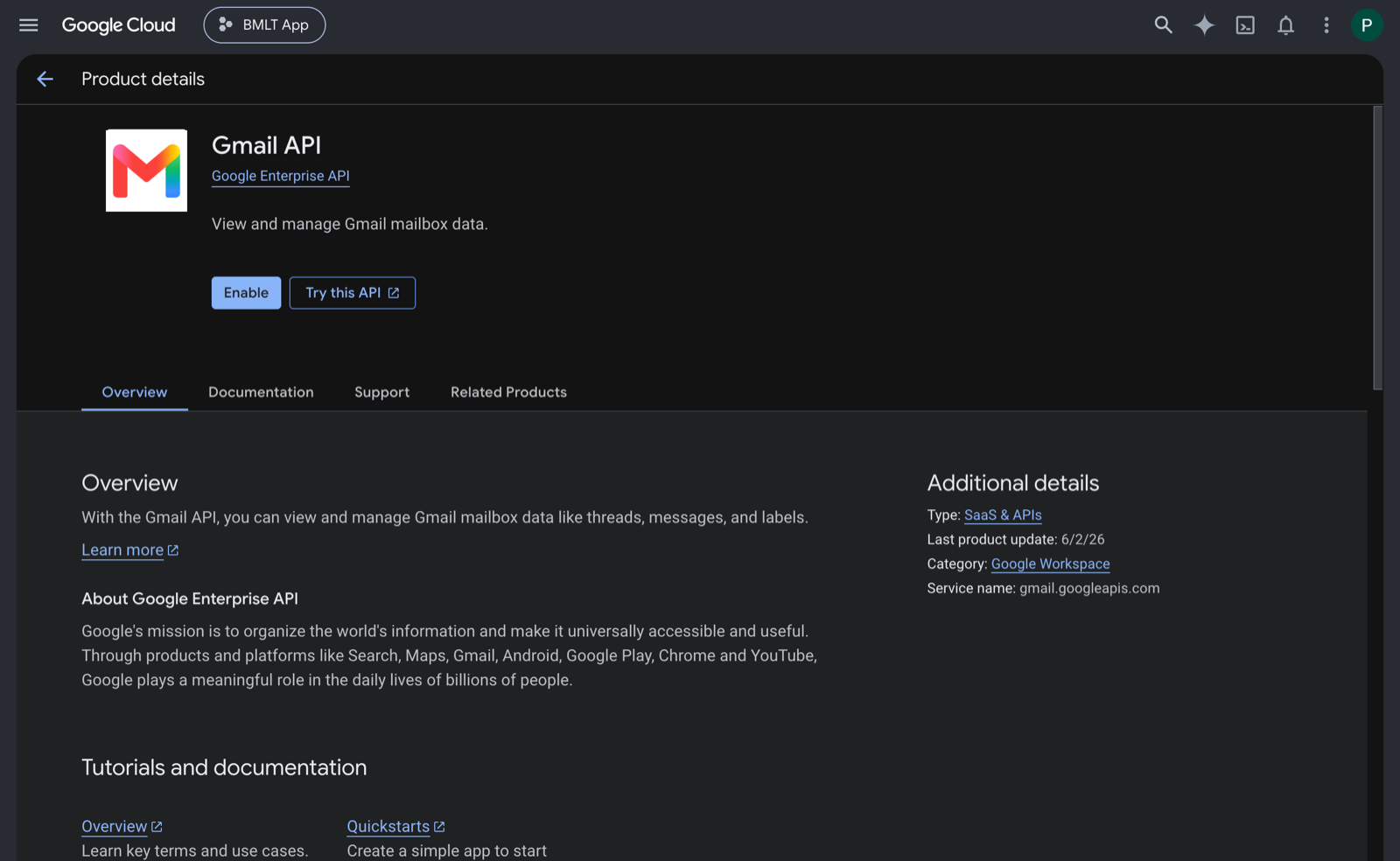
That is all this step needs. You do not need to configure an OAuth consent screen for the service-account method — that's only for the browser-consent flow, which Lean SMTP's separate Gmail OAuth transport uses instead.
05 Create a service account
- Open APIs & Services → Credentials, or go straight to the Service Accounts page.
- Click Create service account.
- Give it a name such as lean-smtp. Google fills in an account email like lean-smtp@your-project.iam.gserviceaccount.com.
- Click Create and continue. You can skip the optional "Grant this service account access to the project" and "Grant users access" steps — they are not needed here. Click Done.
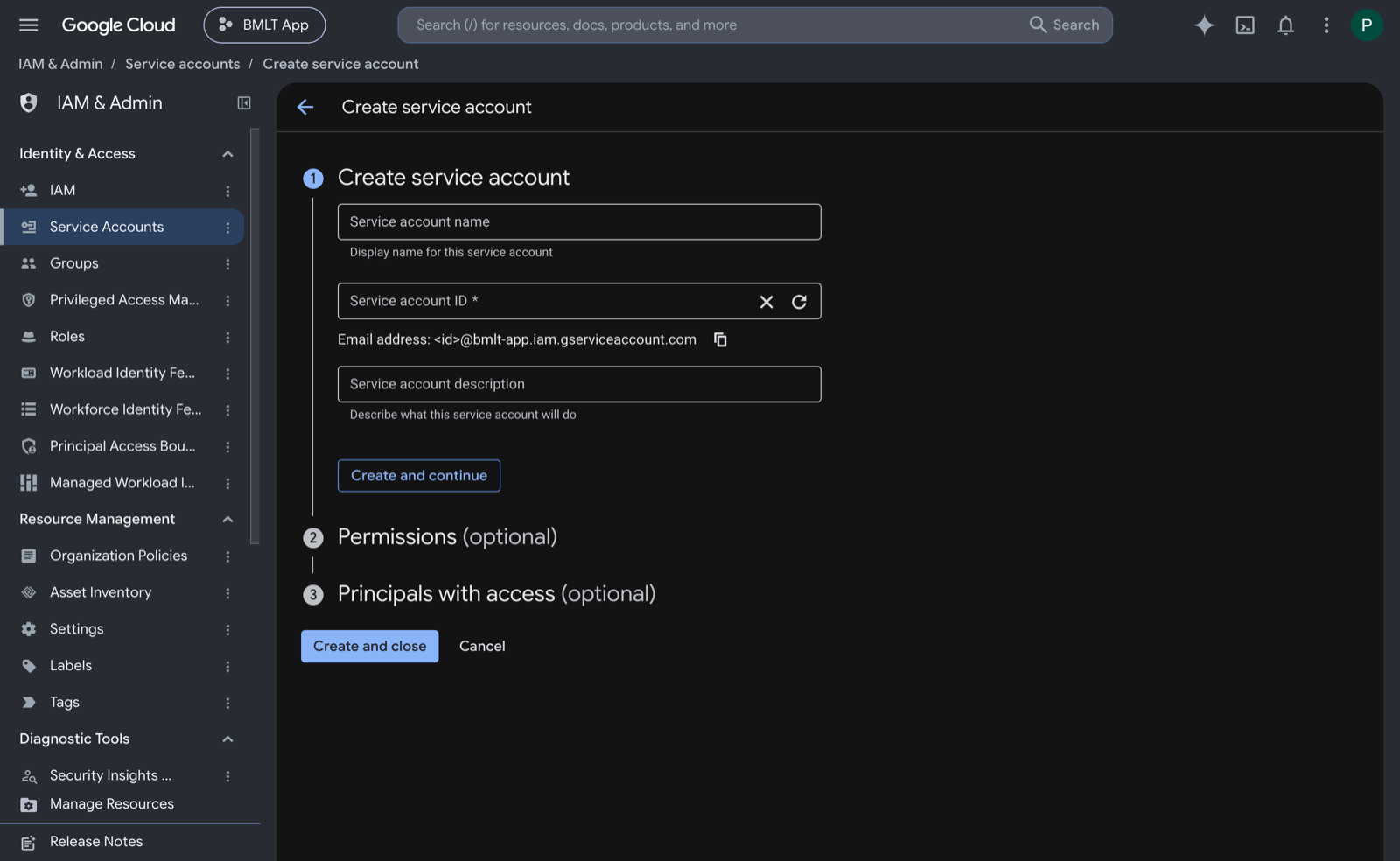
The service account needs no IAM roles on the project. Its only power comes from the delegation you authorise in Step 7, scoped to just gmail.send.
06 Download a JSON key
- On the Service Accounts list, click your new account, then open the Keys tab.
- Click Add key → Create new key, choose JSON, and click Create.
- A .json file downloads. This is the private key — treat it like a password. You will paste its entire contents into the plugin shortly.
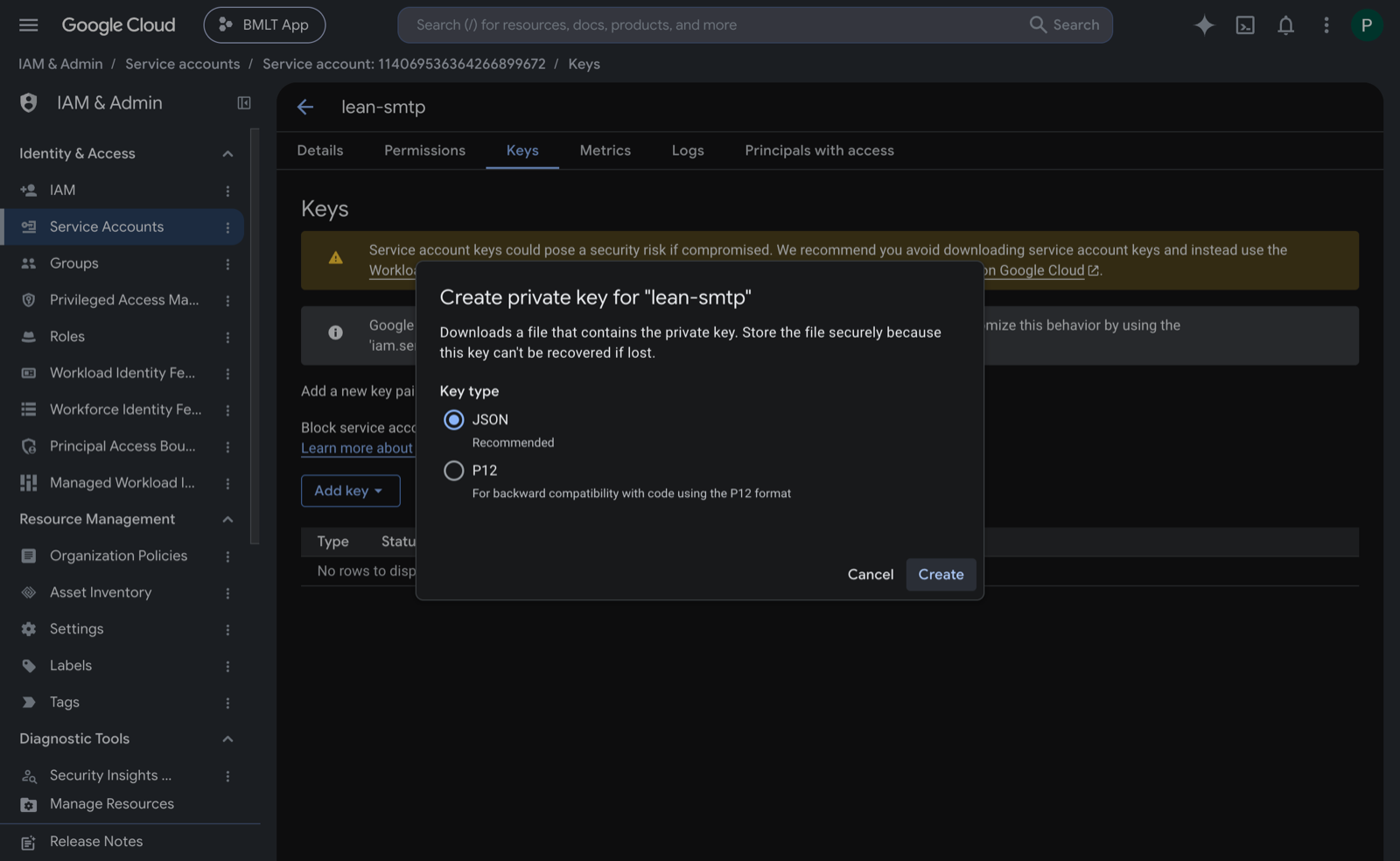
The file looks like this (your values will differ):
{
  "type": "service_account",
  "project_id": "wordpress-mail",
  "private_key_id": "a1b2c3…",
  "private_key": "-----BEGIN PRIVATE KEY-----\n…\n-----END PRIVATE KEY-----\n",
  "client_email": "lean-smtp@wordpress-mail.iam.gserviceaccount.com",
  "client_id": "109876543210987654321",
  …
}
Paste the file exactly as downloaded, including the \n sequences inside private_key. The plugin decodes them back into the real newlines the key needs. If you re-type or reformat the key, signing will fail with Could not read the service-account private key.
07 Authorise domain-wide delegation
This is the step that is unique to Gmail, and it must be done by a Workspace Super Admin. It grants the service account permission to send as mailboxes in your domain — and only for the one scope you name.
First, note the service account's client ID — the long numeric client_id from the JSON key (also shown on the service account's detail page as its Unique ID / OAuth 2 Client ID). Then, in the Admin Console:
- Go to Security → Access and data control → API controls.
- Under Domain-wide delegation, click Manage domain-wide delegation.
- Click Add new.
- For Client ID, paste the numeric client ID from above.
- For OAuth scopes, enter exactly:
https://www.googleapis.com/auth/gmail.send
- Click Authorise.
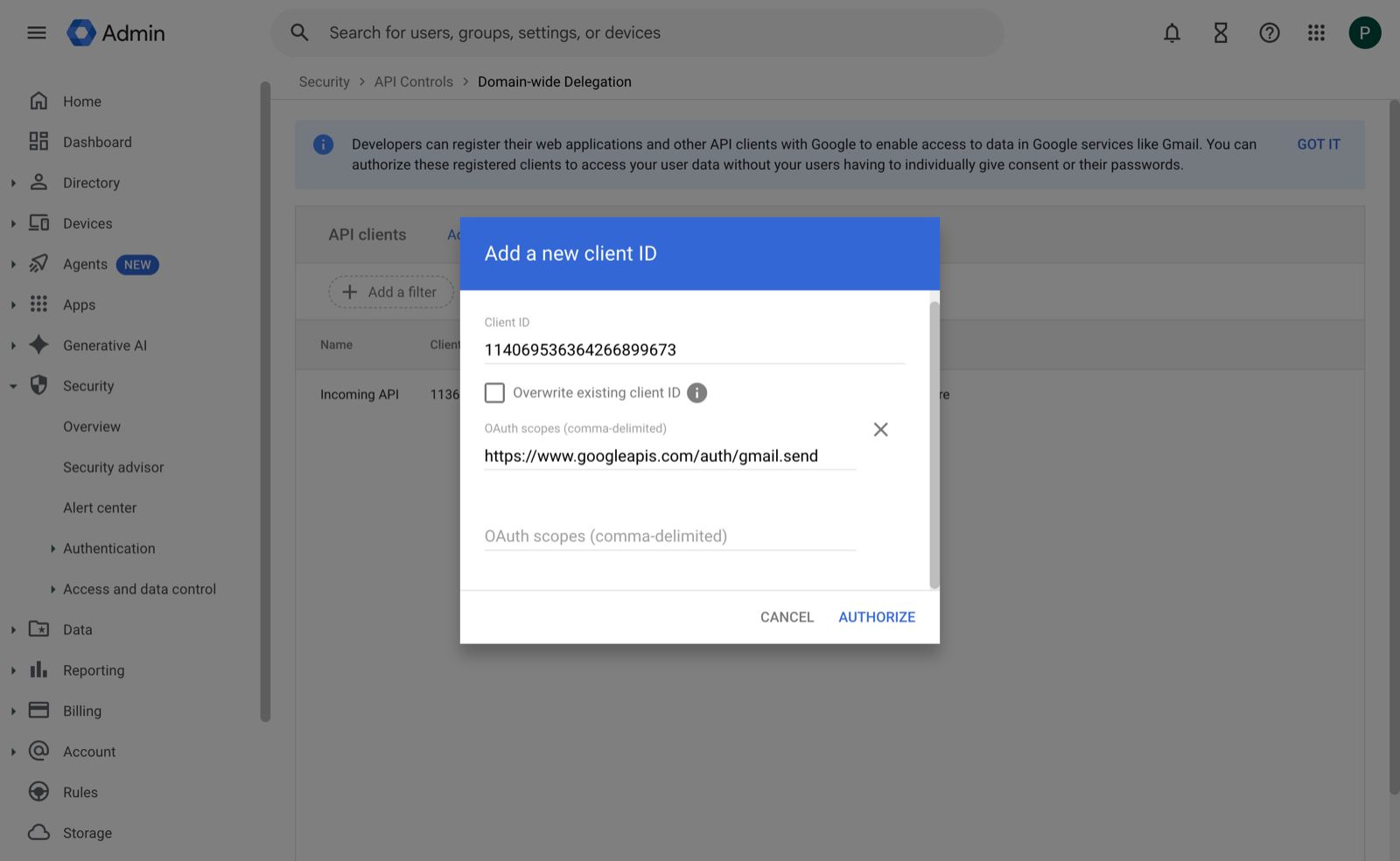
Enter the scope exactly as https://www.googleapis.com/auth/gmail.send — no trailing spaces, no broader mail.google.com. If the authorised scope doesn't match what the plugin requests, Google rejects the token with unauthorized_client.
Changes can take a few minutes (occasionally up to ~24 hours) to propagate. If your first test fails with an auth error right away, wait and try again before changing anything.
08 Configure Lean SMTP
In WordPress, go to Settings → Lean SMTP and:
- Set Mailer to Gmail / Google Workspace.
- Under the Gmail section, set Send As to the Workspace mailbox mail should come from — e.g. noreply@example.com. This is the mailbox the service account impersonates.
- Paste the entire JSON key file into Service Account Key. It is stored encrypted and never shown again; leave it blank on later saves to keep the existing key.
- In the From section, set the From Email to the same address as Send As (or an alias that mailbox is allowed to send as). A mismatch makes Google reject the message.
- Click Save Changes.
Google only lets the impersonated mailbox send as itself or its permitted aliases. If your From Email is a different address, the send fails. Keep them aligned — and if another plugin sets its own From address, turn on Force From so Lean SMTP's address wins.
09 Configure in wp-config.php (optional)
Every setting can be pinned as a constant in wp-config.php, which always beats the stored option and renders the field read-only in the admin. This keeps credentials out of the database and lets you deploy the same config across environments:
define( 'LEAN_SMTP_MAILER', 'gmail' );
define( 'LEAN_SMTP_FROM_EMAIL', 'noreply@example.com' );
define( 'LEAN_SMTP_GMAIL_SENDER', 'noreply@example.com' );

// the full JSON key, as one string — easiest from an env var
define( 'LEAN_SMTP_GMAIL_SERVICE_ACCOUNT', getenv( 'LEAN_SMTP_GMAIL_KEY' ) );
A value set in a constant is used as-is and is not run through the plugin's encryption — so load the key from an environment variable rather than hard-coding the JSON into a file under version control. A constant-backed field shows read-only in the settings screen and names the constant in force.
10 Send a test email
Confirm it works end to end:
- On the settings page, use the Send a Test Email button, or
- From the command line, run WP-CLI:
$ wp lean-smtp test you@example.com

Success: Test email sent to you@example.com.
You can also check wp lean-smtp status to see the mailer and each setting's source (option or constant); secret values are never printed, only where they came from. If the send fails, the error names the HTTP status and Google's own message — see below.
11 Troubleshooting
| Symptom | Likely cause & fix |
|---|---|
| unauthorized_client | Domain-wide delegation isn't authorised, the client ID is wrong, or the authorised scope doesn't match gmail.send. Re-check Step 7, and allow a few minutes for changes to propagate. |
| HTTP 400 / 401 at auth | "Google refused the authentication request." Usually the service account, scope, or Send As subject is off, or the system clock is badly skewed (the JWT's iat/exp become invalid). Verify the Send As mailbox is a real, active mailbox in the domain. |
| Could not read the private key | The key JSON wasn't pasted in full, or the private_key newlines were mangled. Re-download a fresh JSON key and paste the whole file unchanged. |
| HTTP 403 (Gmail rejected) | Gmail API not enabled on the project (Step 4), or the delegation scope is too narrow/wrong. Confirm the API is enabled and the scope is exactly gmail.send. |
| "From" / delegation denied | The From Email isn't the Send As mailbox or one of its permitted aliases. Align them, or enable Force From. Sending from a @gmail.com account will never work — it must be a Workspace mailbox. |
| Worked, then stopped | The JSON key may have been deleted/disabled in Google Cloud, or the service account removed. Check the Keys tab and the delegation entry still exist. |
12 Security notes
- Least privilege. The delegation is scoped to
gmail.sendonly — the service account can send mail as your domain's mailboxes, but cannot read inboxes or access anything else. - Encrypted at rest. When stored in the database, the key JSON is AES-256 encrypted against your site salts and never re-displayed in the browser.
- Rotate keys periodically, and whenever one may have been exposed: create a new JSON key, paste it in, test, then delete the old key in the Google Cloud Keys tab.
- Revoking access is a single click: remove the client-ID entry under Domain-wide delegation in the Admin Console, or disable/delete the service account in Google Cloud.
Open an issue on GitHub or ask on the WordPress.org support forum. Google's own reference for this flow is service-account authentication and sending with the Gmail API.